Page Setup Instructions:
Click the icon above ("Custom CSS") to add your own icons for the "Link Buttons".

👉 You can grab our free icon pack from:
https://storage.googleapis.com/msgsndr/EQsmuwZsKhdq35CTE4G5/media/67d1d5543cebed490930d8df.zip
(highlight the URL above, right-click, choose "Open Link in New Tab")
- This link will prompt you to save the file on your computer.
- Rename the file to something like "Business Card Icons.zip" before saving.
- Once saved, unzip the file to access the icons.
- Upload the icons to your account's Media Storage.
- Copy the link of an icon, and paste it in the Custom CSS (instructions below).
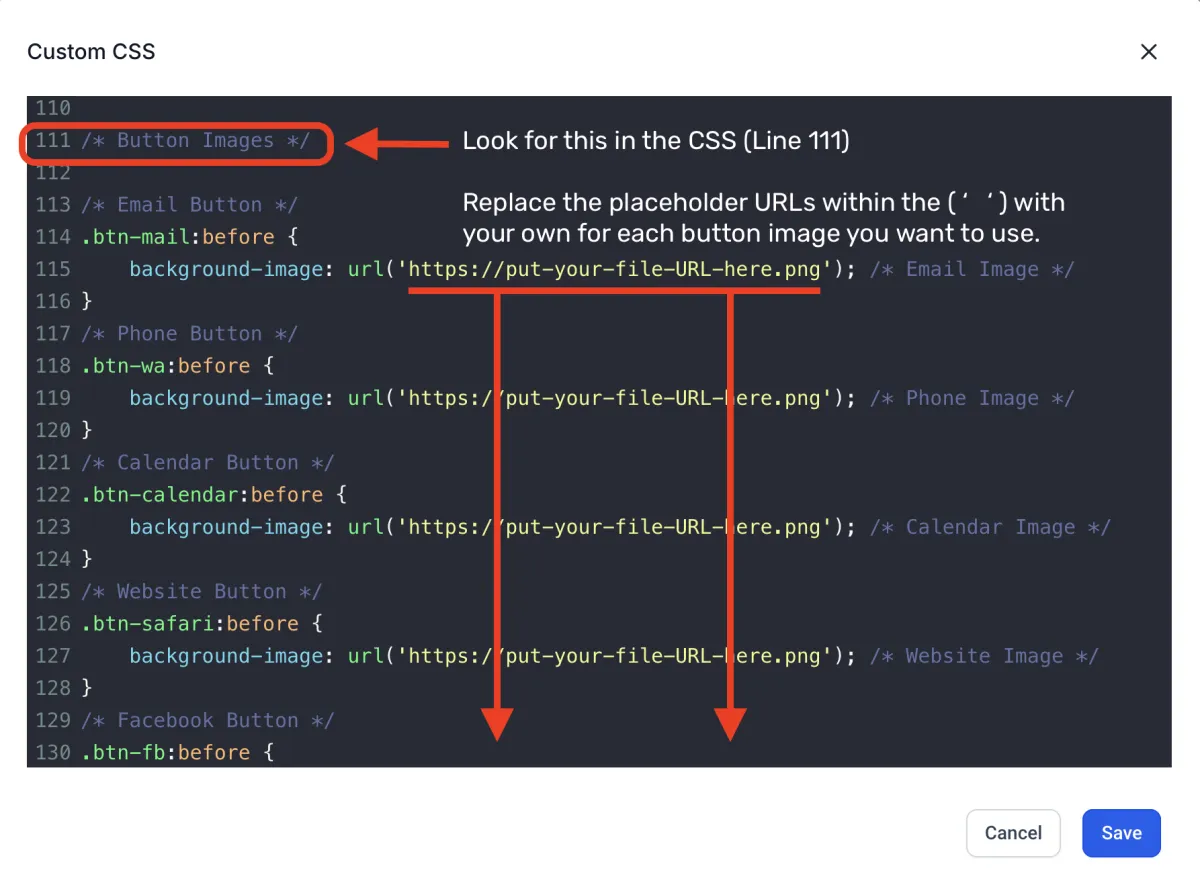
INSTRUCTIONS (continued):
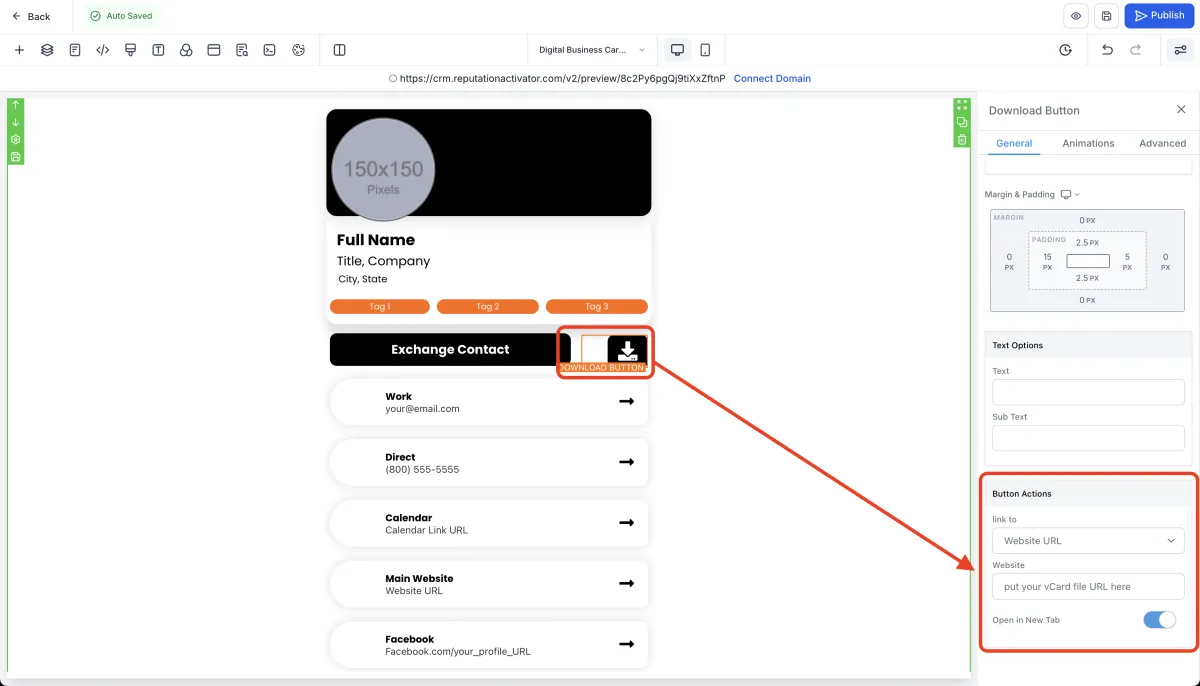
"Exchange Contact" button - This button is pre-configured to show the hidden section that contains the contact info exchange form. There's not really a reason to need to edit this button directly.
"Download" button - You will need to host your vCard file in your account's Media Storage. Copy the file link from there and paste it in the button action settings.
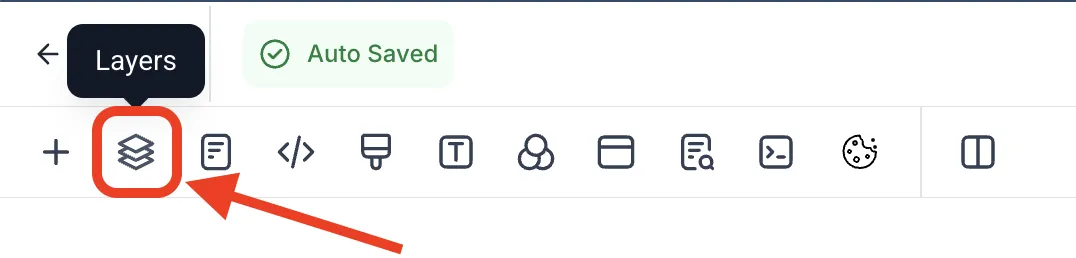
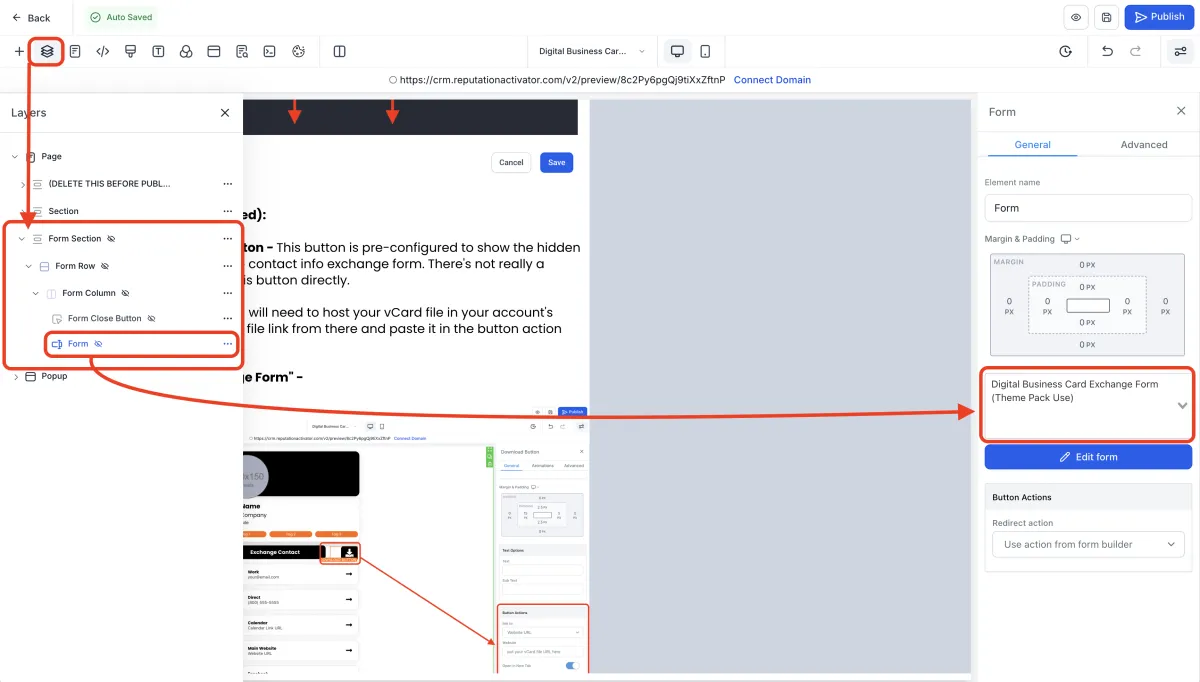
"Business Card Exchange Form" - Click the "Layers" icon in the top toolbar of the page editor and expand the "Form Section" elements until you see "Form". Click on "Form" to open the Settings panel on the right. Make sure you select YOUR form in the list (and not the one that is there by default).
If you have not yet made your own form: Stop now and go clone/duplicate the "Digital Business Card Exchange Form (Theme Pack Use)" and rename it with your name (so you can locate it). Be sure to modify the form to show your information instead of any placeholders. Once finished, save the form.
Re-open/refresh the Page Builder so that your form shows up in the list. Select it.
Continue to make any other edits to this page as you see fit. Be sure to modify the page's SEO metadata too.
NOTE: The Custom HTML/Javascript element at the bottom of the page is there to help make things look good, so don't remove it.
Once you are done, you can publish this page on your own custom domain.
Delete this entire section (in grey) AFTER you have set your Link Button icons in the "Custom CSS", and they appear below in the preview of the digital business card.

Frederick Howard, Realtor® | Coach
CEO, 3L Mastery, LLC
Torrance, CA
Realtor®
Coach
Asst. Team Leader
Share your contact information.
You will get [FIRST NAME]'s vCard in a follow-up email.
Privacy Policy | Terms of Service